Finding the fastest way to add products to WooCommerce is a top priority for store owners who deal with large inventories. When you have dozens of new items to list, the standard WooCommerce editor can feel slow because it reloads the page every time you click “Publish.” This waiting time adds up, making the process of manual data entry feel like a never-ending task.
To truly speed up WooCommerce product entry, you need a tool that focuses on performance and simplicity. By using a minimalist interface that avoids heavy page refreshes, you can transform a couple of hours of work into just a few minutes. In this guide, we will show you how to streamline your workflow and achieve a WooCommerce quick add product experience that feels modern and effortless.
Fastest way to add products to WooCommerce
If you want to save time, the best method is to use a dedicated tool designed for high-speed entry. Instead of navigating through multiple tabs for every single item, you can use a single-screen dashboard to list your items instantly.
Step 1: Install Quick Product Creator for WooCommerce
The first step is to set up a lightweight helper plugin. We recommend using Quick Product Creator for WooCommerce, which is designed specifically for bulk add products in WooCommerce without the typical lag.
- Download Link: Quick Product Creator for WooCommerce

Step 2: How to Install and Activate
You can get the plugin running in less than a minute by following these simple steps:
- Log in to your WordPress dashboard.
- Go to Plugins > Add New.
- Search for “Quick Product Creator”.
- Click Install Now and then Activate.
- Note: Make sure you have WooCommerce installed and active first!
Step 3: Start Adding Products Instantly
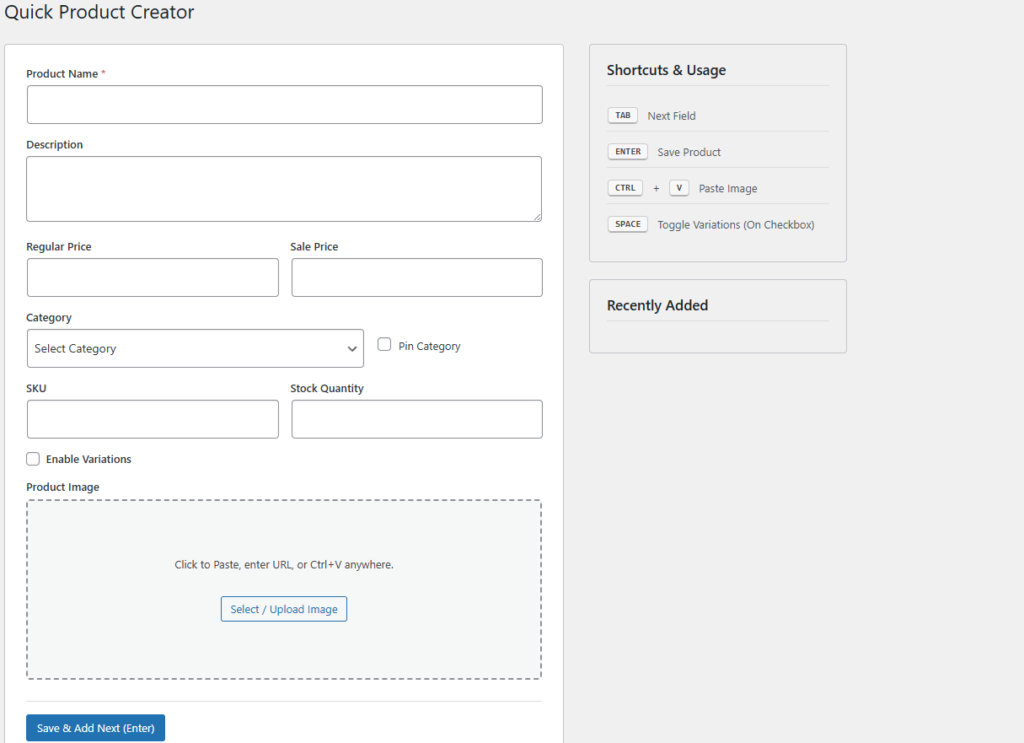
Once activated, go to Products > Quick Product Creator. You will see a clean, professional interface that includes only the essential fields: Name, Price, Category, and Image.
Here is how to use it for maximum speed:
- No Page Reloads: Use the AJAX-powered form. When you hit “Save,” the product is added in the background, and the form clears immediately for your next item.
- Use Your Keyboard: You can move between fields using the TAB key and save by pressing ENTER. You don’t even need to touch your mouse!
- Paste Images (CTRL+V): This is a huge time-saver. Instead of uploading files, you can simply copy an image from your supplier’s site or your folder and paste it directly into the product screen.
- Pin Categories: If you are adding many items to the same category, use the “Pin” feature so you don’t have to select the category every single time.
Why This Method Works
Traditional methods require you to wait for the server to process the entire page for every product. By using a WooCommerce quick add product tool like this, you eliminate the “waiting” part of the job. It’s the perfect solution for e-commerce managers who need to perform fast product entry in WooCommerce while maintaining high accuracy.
By following these steps, you can focus on growing your business instead of fighting with slow admin panels. Happy selling!


